
TCL GOOGLE TV REMOTE APP
TCL Google TV Remote App: One 6-Digit Code, Then It Just Connects
Q-Class and most S-Class TCL sets run Google TV. They pair once with a code on the screen — and they are the TCL models where voice search works from a phone.
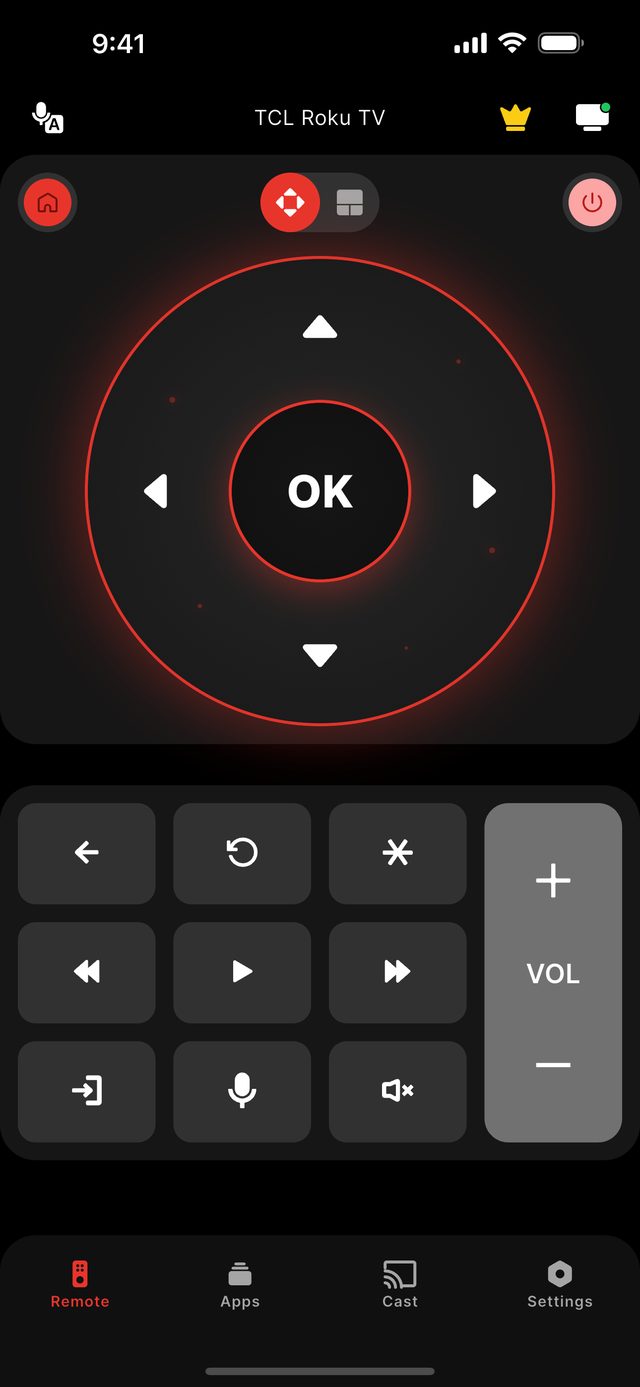
A TCL Google TV or Android TV is controlled from a phone over Wi-Fi after a one-time pairing. Open Remote for TCL TV with the phone on the same network as the television, tap the TV in the list, and type the 6-digit code the TV shows on screen. From then on the app reconnects by itself. These are also the only TCL models where the app's voice search works, because Google TV accepts voice from a phone and Roku TV does not.
TCL's Q-Class — the QLED and Mini-LED sets — runs Google TV, and so does most of the S-Class. Older TCL sets sold as Android TV pair the same way and are covered by the same steps. If your home screen has a "For you" row of recommendations and a profile picture in the corner, this is your platform; if it shows a grid of channel tiles instead, you own a TCL Roku TV and need no code at all.
The 6-digit code is the television's way of confirming that the person holding the phone can actually see the screen. It appears once per phone. That also explains the most common failure we see on TCL Google TV models: more than half of failed connections are refused or errored before the code ever appears, and about one in six are pairings that were cancelled on the TV. In practice that means two fixes solve most cases — make sure the TV is fully awake and on the same Wi-Fi before you tap it, and do not dismiss the code prompt on the television.
TCL's own support pages send Google TV owners to Google's app rather than to TCL Home, which is a fair signal that the platform, not the brand, decides how a phone connects.
Not sure which model you own? Start with the TCL platform guide, or read what the app does on the features page.
The facts for this model family
TCL Google TV and Android TV: what happens on first connection
| What you see | What it means | What to do |
|---|---|---|
| A 6-digit code on the TV | Normal first-time pairing | Type it into the app |
| The TV is in the list but nothing happens | The set is asleep or mid-update | Wake it with the button on the TV, wait for the home screen, tap again |
| "Pairing cancelled" | The prompt was dismissed on the TV | Tap the TV again and leave the code on screen |
| The TV is not in the list | Different network, or a guest network | Join the phone to the same Wi-Fi as the TV |
| It worked yesterday, not today | The TV changed address after a router restart | Open the app and let it find the TV again |
- TCL lines on this platform
- Q-Class (QLED / Mini-LED) and most of the S-Class; older TCL Android TV sets pair the same way
- Pairing
- 6-digit code shown on the TV, once per phone
- Most common failure we see
- The TV refusing or erroring before pairing — more than half of failed connections; cancelled pairing about one in six
- Voice search from the phone
- Yes — Google TV and Android TV models only (Premium)
- TCL's name for HDMI-CEC
- T-Link — Settings → System → Control other devices
- Where TCL sends owners
- To Google's own app, not TCL Home
Step by step
Step by step: TCL Google TV Remote App.
Each step takes seconds. No account is needed — only your phone, the same Wi-Fi as the TV, and a code if your model shows one.
-
Wake the TV to its home screen
A TCL Google TV that is asleep or installing an update will not answer. Turn it on with the button on the set and wait for the home screen.
-
Join the same Wi-Fi
Put the phone on the same home network as the television. Guest networks and mobile data cannot see the TV.
-
Tap the TV in the app
Remote for TCL TV lists the sets it finds. Tap your TCL — the television shows a 6-digit code.
-
Type the code once
Enter the six digits in the app. The phone is remembered, so later sessions connect without a code.
Common questions
TCL Google TV Remote App — your questions answered.
Where do I find the 6-digit code on a TCL Google TV?
Does the TCL Google TV remote app support voice search?
Is this the same as the TCL Home app?
Will it work with an older TCL Android TV?
What is free on a TCL Google TV?
Get the app
Put your TCL TV remote on your phone.
Remote for TCL TV finds your TV on Wi-Fi and connects the way your model expects. Roku TV models connect without any code. Google TV and Android TV models show a 6-digit code the first time you connect; Fire TV Edition sets show a 4-digit code. Navigation, volume and channels are free; Premium adds Power, Home and Back.

iPhone version: in App Store review — available on Google Play now.
An independent app by Auxility, Inc. Not affiliated with, endorsed by, or sponsored by TCL. TCL is a trademark of TCL Technology Group Corporation, used only to indicate device compatibility. Roku is a trademark of Roku, Inc.; Google TV and Android TV are trademarks of Google LLC; Fire TV is a trademark of Amazon.com, Inc.
Keep exploring